
Sep 14, 2010
How to Resolve error for Order Management in GP Business Portal
Submitted by Madankumar Kasthuri
If you get the below error message, when you try to access Order Management page in Business Portal for Microsoft Dynamics GP 10
Select the concerned user and give the Customer and Salesperson roles with some default value. Then this error would be fixed.

Standard Numeric Format Strings in SQL
Article Submitted by Madankumar Kasthuri
Standard numeric format strings are used to format common numeric types. A standard format string takes the form Axx where A is a single alphabetic character called the format specifier, and xx is an optional integer called the precision specifier. The format specifier must be one of the built-in format characters. The precision specifier ranges from 0 to 99 and controls the number of significant digits or zeros to the right of a decimal. The format string cannot contain white spaces.
If the format string does not contain one of the standard format specifiers, then a FormatException is thrown. For example, the format string "z" is interpreted as a standard numeric format string because it contains one alphabetic character, but the alphabetic character is not one of the standard numeric format specifiers so a FormatException is thrown. Any numeric format string that does not fit the definition of a standard numeric format string is interpreted as a custom numeric format string. The format string "c!" is interpreted as a custom format string because it contains two alphabetic characters, even though the character "c" is a standard numeric format specifier.
The following table describes the standard numeric format strings. Note that the result string produced by these format specifiers is influenced by the settings in the Regional Options control panel. Computers using different settings will generate different result strings.
Aug 25, 2010
Great Plains Maintenance and Recovery Procedures
The Great Plains system is designed to ensure maximum accuracy and integrity of your accounting data. Occasionally, however, your data tables may become damaged. Hardware failures, power surges, and other problems can damage or destroy data.
While damage occurs infrequently, the factors that cause it are difficult to predict or control, and it's necessary to take measures to protect your data. Regularly back up your accounting data and perform table maintenance to minimize risk of data loss from table damage.Only SA or DYNSA can open the Backup Company window to make backups. The backup procedure must be run on the server.
Read the Complete article here GP Maintenance
AA Transaction Error – Primary Key Voilation
There are quite a few errors comes in AA which are not highlighted in the knowledge base articles.
Transaction dimensions can't able to be saved. System had thrown you the following message
- 'Primary key violation error on table AAG00600. Cannot insert duplicate records on table' along with that message there was another saying
- 'The stored proc aagCreateTree returned the following results. DBMS: 2627, Great Plains: 0'.
This problem is due to the aaTreeID which is the primary key violation of AAG00600. In order to rectify it follow the process below.
Run all the below steps in SQL Server Query Analyser
Step 1:- select * from dynamics..sy01500 (used to know the company id)
Step2:- select * from dynamics..aag00102 where aatableid = 600 ('600' is the source aa table ID for which the corresponding aaRowID mentioned is the last rowid inserted in AAG00600 for the corresponding is company ID)
Step3:- select * from two..aag00600 (look for the aaTree ID were the last record inserted is holding the same ID as that of the aaRowID in aag00102 table)
If the rowid and the tree id is not same for the corresponding company then you will be getting the above message which will not allow you to save the new transaction dimension for that company. So use the following code to make the rowid as same as that of the aatree id in AAG00600.
Step4:- update dynamics..aag00102 set aarowid = 14 where dex_row_id = 4
Find Missing / Deleted Journal Entry in Microsoft GP
When your company auditor ask for all the missing or deleted Journal entry, it's not a big task now you can get it in minutes by running the script below in your SQL query analyser.
If Object_Id('tempdb..#tempJV') is Not Null
Drop table #tempJV
create table #tempJV
(JVno int,MJV int identity(1,1))
insert into #tempJV (JVno)
(select distinct JRNENTRY from GL20000 )
select wg.MJV as id_is_missing
from #tempJV wg left join #tempJV ti on wg.MJV = ti.JVno
where ti.JVno is null order by wg.MJV
Keep visiting this site for more Dynamics Tips... J
Aug 24, 2010
Dynamics Management Reporter
Management Reporter is a specialized financial reporting solution that allows users to create powerful reports in minutes. This application allows executives, managers, and front-line employees to gain access to the information they need when they need it and where they need it. There are 3 basic building blocks in Management Reporter.
The first building block is called a row definition. A row definition defines the descriptive lines (for example, sales or sales returns) on a report. It also lists the account codes or dimensions that contain the values for each line item and includes row formatting and calculations.1
The second building block is called a column definition. 1 A column definition defines the time period to use when extracting data from the financial data source. It also includes column formatting and calculations.
The third building block is called a reporting tree definition. A reporting tree definition is similar to an organizational chart. It contains individual reporting units that represent each box in the chart. These units can be either individual departments from the financial data or higher-level units that summarize data from other reporting units.
Together these three building blocks give users the flexibility to define a virtually unlimited number of reports to meet their business needs. The report definition process is designed in such a way that the average end user can get access to the critical business information they need quickly and easily.
Another feature built into Management Reporter that simplifies the report creation process is the Report Wizard. The Report Wizard gives you the choice between creating one of five different financial reports including a balance sheet, three types of income statements and a trial balance.
Aug 19, 2010
Resetting GP 2010 System Password
Forgot your GP System Password? GP Administrator relax, you can now reset System password with the below trick, but be careful using this trick
Run the below script in SQL Server Management studio
USE DYNAMICS
GO
Update SY02400 Set Password = 0X00202020202020202020202020202020
Keep watching this blog for more tricks on GP…….. J
Aug 17, 2010
Enhanced Email Option in Microsoft GP2010
Sending Document to Customer's or Vendor's is made easy in Microsoft GP2010 with addition of Email options to the Transaction level. You can select to embed documents, attach documents, or both. If you select to send documents as attachments, you can specify which type of file formats you want to attach the documents as. The options you select in this window are available when setting up or modifying e-mail options for documents, customer records, and vendor records.
If you selected to use an option, such as the DOCX file format, and then decide not to use the option, you must update the customer and vendor records that were set up to use the DOCX file format. An addition feature include the what format you want to send the document to Customer or Vendor and an option of creating a template which can be attached to Customer/Vendor.
Aug 14, 2010
Improved Home Page Metrics for Dynamics GP2010
The metrics, charts, and KPI's that are available on the Microsoft Dynamics GP Home Pages now leverage SQL Server Reporting Services (SSRS) reports. This enables greater flexibility for our customers in regards to the metrics that are displayed and how they can be accessed which are easily build on SSRS.
- Metrics built using Office Web Components are still available to the users
- Customers can choose SQL Server Reporting Services as their metric source
- Over 100 fully customizable metrics that can appear on the Microsoft Dynamics GP Home Page
- Companies can easily create their own metrics they want displayed on the Home Page
- Metrics are part of the SQL Server Reporting Services Deployment Wizard
- Metrics may be deployed to SQL Reporting Services in either Native or SharePoint mode
- Reporting Services metrics will appear in the SQL Reporting Services Report List; making them available to add as links on the Home Page
- All metrics are available to use in Business Portal as well.
- Users can display multiple metrics on the Home Page at one time, or display just one at a time with the option to scroll through the metrics
How to Setup the Reports?SSRS reports setup is just a screen away provided you have installed SQL Server Reporting Services (SSRS) if not please follow the instruction provided with SQL server installation document. Assuming you have installed SQL Server Reporting Services (SSRS) follow the steps below.
- Install SRSReports which are under GP2010 installation CD/DVD as additional products.
- Configure SSRS reports for GP open Programs >> Microsoft Dynamics >>Business Intelligence >>Microsoft SQL Server Reporting Service Wizard.
- Follow the instruction on the wizard and provide the reportserver path and select the company you want to install SSRS Reports for GP.
Once done login to GP and navigate to Tools>>Setup>>System>>Reporting Tools setup.
There is an important thing that needs to be looked into while configuring the reporting tools for GP, while entering the Report Server URL make sure you enter the URL properly- If SQL Server 2005 Reporting Service is installed then the path should be http://localhost/ReportServer/reportingservice.asmx
- if SQL Server 2008 Reporting Service is installed then the path should be http://localhost/ReportServer/reportingservice2005.asmx
- Under the Charts and KPI's Section mark only the Option Enable SQL Server Reporting Service Home Page Metrics
Note: Do not mark Charts and KPI's have been deployed to a sharepoint Server, if you mark this option then you will not be able to view the charts and KPI's under the Home page Metrics. - Click OK and close the Reporting Tools Setup Window
- That's All folks.


To ADD Reports / Charts Build your custom Report or Charts in SSRS.
- Deploy the custom report under the Reporting Services for this open SSRS Report Manager and Click on the Company folder
- Identify your custom report to make sure it is added under proper module.
- Click on the module you identified and click Charts And KPI's Folder.
- Deploy your reports under this Folder and give the Proper name that can be viewed under Home Page Metrics Selection in GP2010.
Aug 13, 2010
If Check Voided by mistake in Microsoft Dynamics GP
You issue a check to a supplier and then someone erroneously voids that check. How do you recover from this without having to contact the vendor, issue a new check, and stop payment on the old one?
Follow the 7 Steps below
- First Navigate to Cards>>Financial>>Checkbook
- Select the checkbook from which the check was issued. If the Duplicate Check Numbers checkbox isn't checked, check it.
- Click Save. Leave the Checkbook Maintenance window open. We'll be coming back to it.
- Navigate to Transactions>>Purchasing>>Manual Checks and create a manual check to replace the check (in the system) that was voided. Change the Document Number to the check that was inadvertently voided. Post the transaction.
- You now have a replacement check in the system for the one that was voided that can be cleared in Bank Rec when the supplier deposits the original check.
- Document the heck out of this because you'll now have two checks in the system with the same check number, one voided and one not. And sure as can be, this check will be selected during audit.
- Go back to the Checkbook Maintenance window and uncheck Duplicate Check Numbers.
Deleting an Item in Microsoft Dynamics GP
Before you can delete an item from the item master; there are a number of conditions that must exist. First make sure that:
- There should be no quantities of the item are on hand at any site.
- There should be no allocated quantities of the item at any site.
- The item is no longer assigned to any site.
- There are no un-posted transactions for the item exist (work transactions in IV and other modules that update IV like POP, SOP).
- The item is not a component in any bills of materials in Dynamics GP. Refer to the 'Bill of Materials' documentation for more information.
- No inventory history exists for the item.
Aug 12, 2010
Microsoft Dynamics AX Architecture
Understanding the internal architecture of Microsoft Dynamics AX can help you make decisions when planning and developing a Microsoft Dynamics AX system. Here are some pointers on DAX architecture primarily for DAX architects & solution developers.
System Architecture
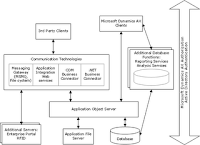
This diagram provides a high-level overview of a Microsoft Dynamics AX system with all components installed, and describes how communications flow among components.
Application Object Server (AOS) Architecture
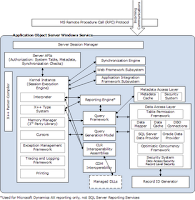
This diagram describes the functionality within the AOS Windows service, and describes how communications flow within it.
Application File Server Architecture

This diagram below describes the application file server.
Client Kernel Architecture

This diagram below describes the functionality within the client kernel, and describes how communications flow within it.
Business Connector Architecture

The differences between the client kernel as it runs on a standard client and a Business Connector client are:
- The Session Manager in the client kernel manages only a single instance--in the Business Connector kernel, it manages multiple instances.
- The client kernel includes forms security, while the Business Connector kernel does not.
This diagram describes the architecture of the Business Connector version of the client kernel, and describes how communications flow within it.
Application integration framework Architecture

This diagram below describes the functionality within the application integration framework, and describes how communications flow within it.
Enterprise Portal Architecture

This diagram below provides a logical overview of a Microsoft Dynamics AX system with an Enterprise Portal server, and describes how communications flow within it.
Reporting Server Architecture
 This diagram below provides a logical overview of a Microsoft Dynamics AX system with a reporting server, and describes how communications flow within it.
System Architecture

This diagram provides a high-level overview of a Microsoft Dynamics AX system with all components installed, and describes how communications flow among components.
Application Object Server (AOS) Architecture

This diagram describes the functionality within the AOS Windows service, and describes how communications flow within it.
Application File Server Architecture

This diagram below describes the application file server.
Client Kernel Architecture

This diagram below describes the functionality within the client kernel, and describes how communications flow within it.
Business Connector Architecture

The differences between the client kernel as it runs on a standard client and a Business Connector client are:
- The Session Manager in the client kernel manages only a single instance--in the Business Connector kernel, it manages multiple instances.
- The client kernel includes forms security, while the Business Connector kernel does not.
This diagram describes the architecture of the Business Connector version of the client kernel, and describes how communications flow within it.
Application integration framework Architecture

This diagram below describes the functionality within the application integration framework, and describes how communications flow within it.
Enterprise Portal Architecture

This diagram below provides a logical overview of a Microsoft Dynamics AX system with an Enterprise Portal server, and describes how communications flow within it.
Reporting Server Architecture

Layers in Microsoft Dynamics AX 2009
Layers are a hierarchy of levels in the application source code that enable you to make modifications and additions without interfering with the application objects in the next lower level. When you make an object modification on one level, the modification overshadows the object on a lower level. You could, for example, decide to add e-mail information to a standard form. The addition would be saved on our level only. The revised form replaces the standard form. However, you can always return to the original form at the next lower level by removing the new form.
Three customer groups have an interest in adding and modifying application objects:
- Application developers who create the standard application.
- Business partners.
- End users of Microsoft Dynamics AX.
USR - User - Individual companies or companies within an enterprise can use this layer to make customizations unique to customer installations.
CUS - Customer - Companies and business partners can modify their installations and add the generic company-specific modifications to this layer.
VAR - Value-Added Reseller - Business partners use this layer, which has no business restrictions, to add any development done for their customers.
BUS - Business solution - Business partners develop and distribute vertical and horizontal solutions to other partners and customers.
SL1-SL3 - Certified solutions - Partners certified under the Microsoft Dynamics Industry Solution (MDIS) program distribute their solutions in the SL layers.
HFX - Hotfix - The Dynamics AX team delivers critical hotfixes using the HFX layer.
GLS - Global solution - The Dynamics AX Global Development and Localization team provides a set of GLS layers that contain country-specific functionality for regions in which Dynamics AX is released.
SYS - System - This is the lowest model element layer and the location of the standard Dynamics AX application. Only Microsoft has access to the element definitions at this layer.
Objects defined at higher levels of the stack override objects defined at lower levels of the stack. That means USR Layer Object will cast a shadow on the same object in, for example, the VAR Layer. Objects are stored in a separate file (*.aod) on each layer whenever they are saved from the MorphX development environment client. Element definitions are read from these files and dynamically composed by the Dynamics AX runtime. Object instances are created on either the server or the client based on the model element definition.
Aug 11, 2010
SQL Query to get Field names as Records
At times you may need to have the SQL table column names in runtime for your various reasons, below is the simple query to get the columns as records for any given table. Copy the below code and execute in your SQL Query window.
select column_name,* from information_schema.columns
where table_name = 'Your Table Name'
order by ordinal_position
For More tips on SQL query... keep comeback to this blog
Aug 6, 2010
Financial Reporting Standards Compliance with Microsoft GP 2010
I found a very interesting article by – Steve Kane
With the release of Microsoft Dynamics GP 2010, many organizations are finding new ways to improve their business operations. One of these ways is the ability to prepare standard reports to comply with US GAAP guidelines and make the adjustments necessary to prepare financial reporting compliant with International Financial Reporting Standards (IFRS). The newly released Microsoft Dynamics GP version uses three separate reporting ledgers – BASE, IFRS and LOCAL – to simplify the reporting process.
As more and more US-based companies operate abroad and have to adopt IFRS standard reporting, the need has increased for multiple standards reporting. To provide the flexibility that accounting departments need, Microsoft Dynamics GP 2010 offers three separate reporting ledgers including:
- BASE (commonly used as the US GAAP ledger)
- IFRS
- LOCAL (for organizations that apply non-GAAP-non-IFRS local accounting rules)
Eliminate Work- around for IFRS Reporting
Before the release of Dynamics GP 2010, manual adjustments were required to present financial information compliant with IFRS. The recommended solution was a challenging work-around: create a second GP company to shadow the first, make IFRS adjustments in the second company and, finally, create FRx reports to consolidate the two.
My immediate reaction is…
WORK-AROUND = PAIN + AGONY + SUFFERING = ERRORS = TROUBLE
We can prove this mathematically…and we have all felt the pain.
IFRS in Dynamics GP 2010
With Dynamics GP 2010, the solution is simple and easy. Regular transactions – Sales, Purchasing, Payroll, Inventory, Financial – post to the BASE Ledger. The IFRS ledger is adjusted with closing entries and then FRx financial reports can be used to create the reports.
There is an outstanding determination being made for a patch to FRx that would segregate reporting among the ledgers. Until that patch is released, you should consider segregating IFRS accounts to a unique GL Account segment so that the adjustments can be isolated or separated.
Subscribe to:
Posts (Atom)